Executive Summary (TL;DR)
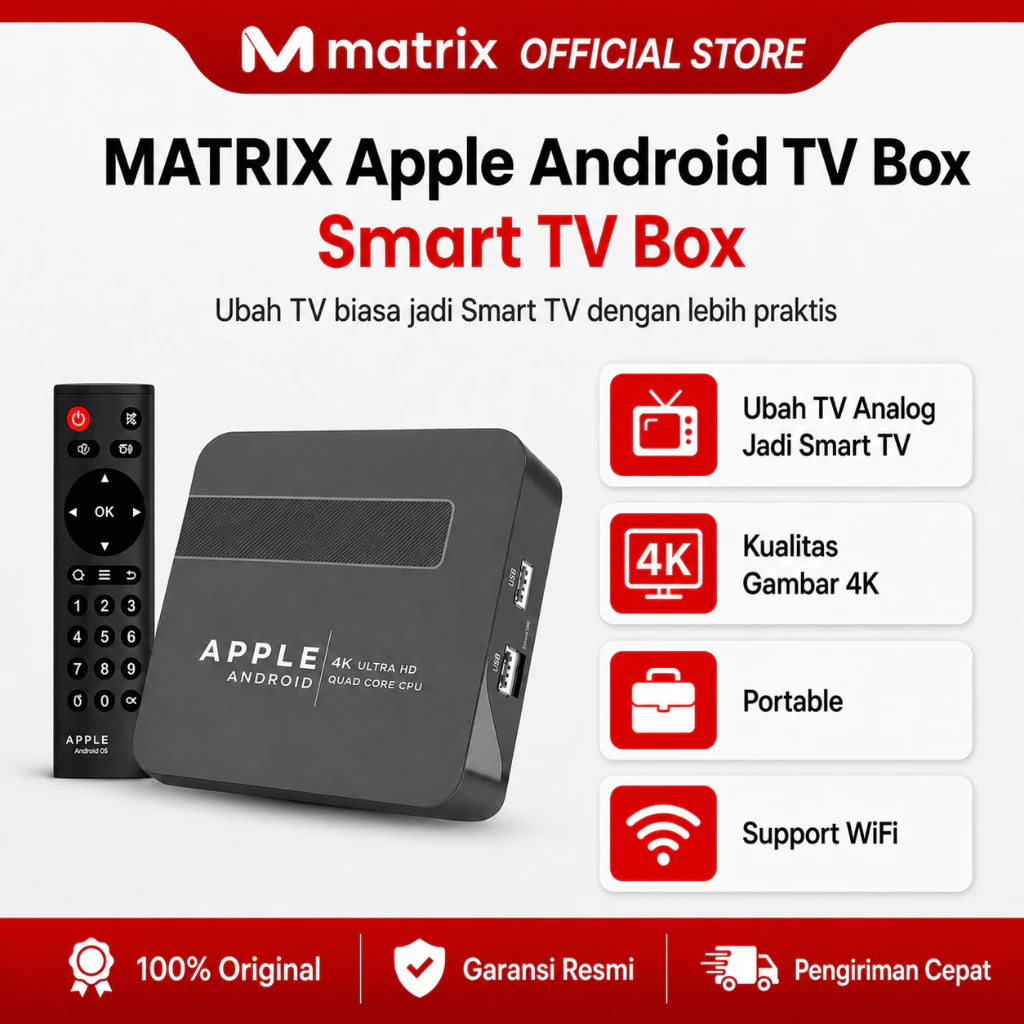
- Connecting an Android Set Top Box (STB) / TV Box to an LED monitor via HDMI is the most cost-efficient and reliable method to modernize optometry refraction lanes.
- Recommended minimum specifications: 2GB RAM, Android 9.0+ (Android TV or AOSP), and an active HDMI port.
- Setup involves 4 core steps: APK installation, TV aspect ratio adjustment (1:1 / Just Scan), physical millimeter-to-pixel calibration, and testing distance configuration (3m/6m).
- Chart controls can be operated wirelessly using standard infrared remotes, 2.4GHz wireless presenter clickers, or Bluetooth keyboards directly from the practitioner's desk.
Digital modernization in ophthalmic clinics, community eye centers, and private optical practices no longer requires expensive imported chart projectors costing thousands of dollars. By pairing an affordable Android TV Box with a calibrated LED display, you can establish a medical-grade visual acuity testing system running 100% offline.
1. Why Choose an Android TV Box for Snellen Digital?
Thousands of optometrists and ophthalmologists deploy Android TV boxes for clinical refraction lanes due to key practical advantages:
- Budget Efficiency: Acquiring a quality Android TV Box ($20–$50) and a 24–32 inch LED screen costs a fraction of dedicated all-in-one digital chart units ($1,200–$3,000).
- Clean Wall Mounting: The ultra-compact TV Box tucks cleanly behind the display mount, keeping examination walls completely free of cable clutter.
- 100% Offline Operation: Once installed and activated, the software operates standalone without requiring constant Wi-Fi connectivity or cellular data.
- Ergonomic Wireless Control: Practitioners operate the system comfortably from behind the trial lens station without approaching the display.
💡 Display Selection Guidance:
For 3-meter lanes, choose a 24" to 32" LED display. For 5 to 6-meter lanes, select a 32" to 43" screen with IPS or VA panels for wide viewing angles and uniform contrast.
2. Hardware & Accessories Checklist
| Component | Recommended Specifications | Primary Function |
|---|---|---|
| Android TV Box / STB | 2GB+ RAM, 16GB+ ROM, Android 9/10/11 (e.g., Xiaomi Box S, Matrix, MECOOL) | Runs Snellen Digital smoothly with zero input lag |
| Display Monitor / TV | Full HD (1080p) or HD Ready (720p), 16:9 aspect ratio | Displays Snellen, Landolt C, and clinical refraction targets |
| HDMI Cable | HDMI 1.4 or 2.0 (1.5m – 3m length) | Delivers lossless digital video output |
| Wireless Remote | Original TV box remote, 2.4GHz Presenter Pointer, or Bluetooth Keyboard | Controls line navigation, letter isolation, and randomization |
| Measurement Tools | Measuring tape (room distance) and physical millimeter ruler | Verifies testing distance and exact screen calibration |
3. Step-by-Step: Installing Snellen Digital APK on Android TV Box
Step 1: Download the Official Installer
Visit the Snellen Digital Download Page on your PC or phone, download the SnellenDigital_Android.apk file, and transfer it to a USB Flash Drive (FAT32 format).
Step 2: Connect USB Drive to the TV Box
Plug the USB drive into an open USB port on the Android TV Box. Open the built-in File Manager or File Explorer application.
⚠️ Security Permission Notice:
If an "Install from Unknown Sources" prompt appears, navigate to Settings > Security / Apps > Special App Access > Install Unknown Apps and toggle permission ON for your File Manager.
Step 3: Execute APK Installation
Select the SnellenDigital_Android.apk file, click Install, and wait 5–10 seconds for installation to complete. Once finished, select Open.
4. Aspect Ratio & Physical Calibration (Clinically Mandatory)
Diagnostic visual acuity accuracy depends on a strict 5 arcminute visual angle. Physical calibration is therefore mandatory upon first setup:
A. Set TV Picture Mode to "Just Scan" / "1:1 Pixel"
Using the TV remote (not the STB remote), open TV Picture Settings. Set Aspect Ratio to "Just Scan", "1:1", "Point to Point", or "Screen Fit". Avoid "Zoom" or "Overscan" modes that distort character geometry.
B. Perform Millimeter-to-Pixel Calibration
- Open Snellen Digital on your TV Box and select Settings > Screen Calibration.
- A reference calibration square or bar will appear on screen.
- Place your physical millimeter ruler directly against the screen over the reference box.
- Use the remote direction keys to adjust the software scale until the on-screen box exactly matches the physical millimeter ruler.
- Click Save Calibration. Values are permanently stored in local memory.
ℹ️ Lane Distance Calibration:
Measure the physical distance between the patient's chair and the TV display surface using a measuring tape. In the app settings, choose your exact distance (e.g., 3.0 m, 4.0 m, 5.0 m, or 6.0 m). The optometric rendering engine automatically scales optotypes according to standard trigonometric visual angle formulas.
5. Connecting & Mapping Wireless Controllers
- Standard TV Box Remote: Use D-pad buttons (Up, Down, Left, Right) to switch lines, OK to isolate single optotypes, and Color/Back buttons to cycle chart modes.
- 2.4GHz Wireless Presenter: Plug the nano USB dongle into the TV Box. The Next/Previous buttons cycle acuity lines seamlessly from the palm of your hand.
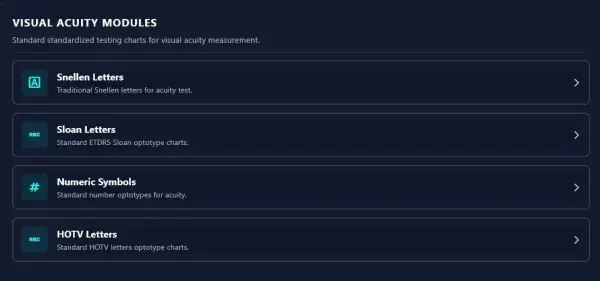
- Mini Wireless Keyboard: Features trackpad and direct alphanumeric shortcut keys (Q, W, E, R) for instant switching between Landolt C, Tumbling E, Numbers, and Duochrome tests.