⚡ Key Takeaways (Clinical Summary)
- Technical Objective: Standardize installation, examination lane distance adjustments (3m–6m), and optotype scaling for digital visual acuity diagnostics.
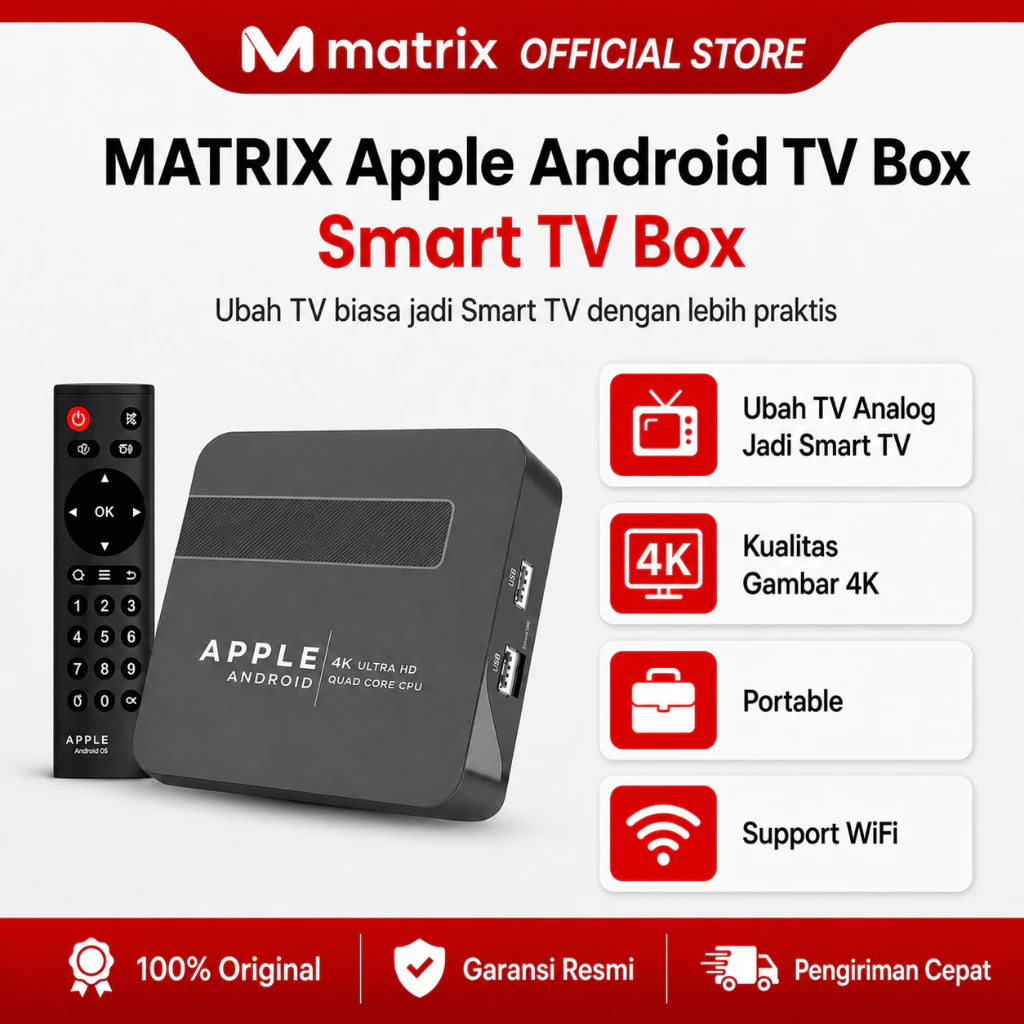
- Cross-Platform Compatibility: Supports Windows PC (Windows 8, 10, 11), Android Tablets, Smart TVs, and Android TV Boxes.
- Medical Calibration Precision: Guided calibration matches physical optotype dimensions to screen DPI and the standard 5-arcminute optometric visual angle.
- Dynamic Optotypes: Includes instant one-click randomization (*randomize*) to prevent patient memorization bias during examination.
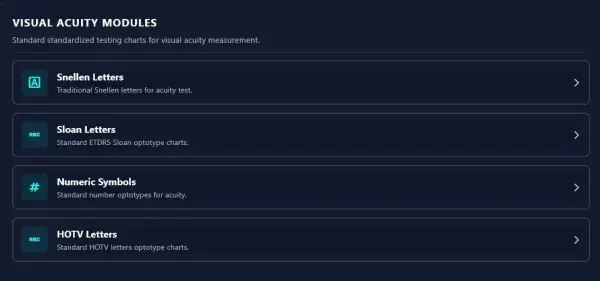
This Snellen Digital Tutorial provides a step-by-step technical walkthrough on how to install, configure testing lane distances (3m to 6m), and physically calibrate optotype sizes (Letters, Numbers, Tumbling E, Landolt C) on Windows PCs, Android Tablets, and Android Smart TV Boxes for optometry clinics and primary healthcare centers.
What is Snellen Digital and Why is Calibration Essential?
Snellen Digital is professional visual acuity software that dynamically renders optotypes (Snellen Letters, Numbers, Tumbling E, Landolt Rings) on computer monitors or TV screens. Following this tutorial accurately is vital to ensure that on-screen character scaling aligns perfectly with the physical distance between the patient and the screen.
Without physical screen calibration, 20/20 (6/6) optotypes may render too large or too small depending on display pixel pitch, invalidating clinical refraction results.
⚠️ Millimeter Calibration Requirement:
Perform re-calibration whenever you connect a new monitor display or change the operating system resolution scaling to maintain standard 5 arcmin visual acuity.
Snellen Digital Tutorial: 4-Step Setup & Calibration Process
- Download Official Installer: Obtain the official software package for your operating system from the Snellen Digital Download Page. Choose the
.exeinstaller for Windows or the.apkfor Android TV / STB Box. - Connect Display Screen: Connect your PC or Android TV Box to the refraction lane monitor or Smart TV (recommended 19” to 43” display with 16:9 aspect ratio).
- Perform Screen Calibration: Open Settings > Screen Calibration. Use a physical millimeter ruler to measure the on-screen reference bar, then adjust the software scale to lock the DPI value.
- Set Physical Testing Distance: Select the physical distance from patient to screen (presets: 3m, 4m, 5m, or 6m). The mathematical engine automatically resizes optotypes to the 5 arcminute visual angle standard.
Comparison: Traditional Printed Chart vs Snellen Digital
| Testing Parameter | Manual Snellen Chart (Paper/Lightbox) | Snellen Digital Software |
|---|---|---|
| Calibration Precision | Static (Fixed 6-meter distance only) | Dynamic (Configurable 3m – 6m via software) |
| Optotype Variety | Fixed sequence (Risk of memorization) | Instant one-click randomization |
| Hardware Platforms | Printed board / Lightbox only | Windows PC, Android Tablet, Smart TV, STB |
| Remote Navigation | Manual pointer stick | Smart TV Remote / Bluetooth Wireless Keypad |
| Integrated Diagnostics | Letter chart only | Ishihara Color, Duochrome, & Astigmatic Fan |
| Licensing | Recurring physical replacements | Lifetime license |
Video Tutorial Guides: Installation & Calibration
Watch these step-by-step video tutorials for practical visual demonstrations:
1. Monitor Optotype Size Calibration Tutorial
2. Windows PC Software Installation Tutorial
3. Android & Smart TV / STB Setup Tutorial
📖 Official Documentation & PDF User Manual
Snellen Digital operations strictly reference international optometric guidelines and clinical health protocols. Download the comprehensive official PDF manual below: